VALORANT Patch 8.0
Released 9 January 2024 during ACT I. New: the Outlaw. Old, but also kinda new: Lotus and Icebox.
Structured from Riot's official patch notes. The bullets below are the announced changes; anything VALDB detected in the game files beyond them lives on the detected changes feed and is never mixed into this page.
Overview
Welcome to Episode 8 Act I and Patch 8.0. There’s lots in store in just the first patch of 2024 (Hello? New weapon?) so have at it and have fun. As always, send us your feedback—we’re always listening.
GENERAL UPDATES
- The Gun Buddy Carousel should now appear alphabetical by name. Hopefully, it is much easier to find what you want!
WEAPONS UPDATES
- Introducing VALORANT’s first new weapon since launch, the Outlaw. A high impact, double-barreled sniper rifle built for do or die playmaking.
- Stay Zoomed
- 2 slugs in a magazine
- Longer reload when empty
- 2,400 credits
- Learn about our newest weapon in our Outlaw deep dive.
- Watch the Outlaw (and some familiar faces) in action below.
AGENT UPDATES
Continuing in the direction of the previous 7.10 GravNet (C) changes, we’re looking to build upon the unique strengths of Deadlock’s two other basic abilities: Sonic Sensor (Q) and Barrier Mesh (E).
The amount of coverage on Killjoy’s Turret (E) outshines other defensive recon tools when paired with the Turret’s other strengths, such as its autonomous detection and long range vision. Reducing its vision cone should push Killjoy to make clearer choices about what area of the map her Turret will cover, while the Turret’s updated visuals should aid you in quickly understanding what areas it will protect.
- For Sonic Sensor (Q), we’re increasing the reliability of the concuss once triggered by shortening its windup time, while also increasing flexibility by allowing you to recall and redeploy it in round.
- Sonic Sensor’s pickup distance increased 12m >>> 27m
- Decreased time to concuss once triggered 1.0s >>> 0.5s
- Decreased time for enemies to destroy Sonic Sensor once triggered 0.65s >>> 0.5s
- Deadlock and her allies can now hear Sonic Sensor’s audio lightly when they are in its area of effect.
- For Barrier Mesh (E), we increased the max length of the barrier walls to allow it to divide much larger spaces than is possible with comparable utility and make it more reliable at fully blocking chokes when deployed quickly.
- Turret (E)
- Added a representation of the Turret’s vision cone on Killjoy’s minimap when she is placing the Turret.
- Added VFX and updated the Turret’s animations to communicate the Turret’s new vision radius.
MAP UPDATES
Icebox is back with a few changes to shake up Mid, B Green and B Orange. Our goal with these changes is to add value and impact to Mid for either team controlling it and simplify pathing toward B Site through B Orange and B Green to make fights more predictable.
Attackers have felt fairly overwhelming to Defenders on Lotus. Because of this, we’re adding more options by adjusting neutral spaces and making some quality of life updates across the map so that Defenders can better hold sites.
- We have upgraded the tech behind our interactable doors in order to polish some of your interactions with others and with Agent abilities.
- Storage container has been added on the left side to block line of sight from Attacker Spawn to B Tube.
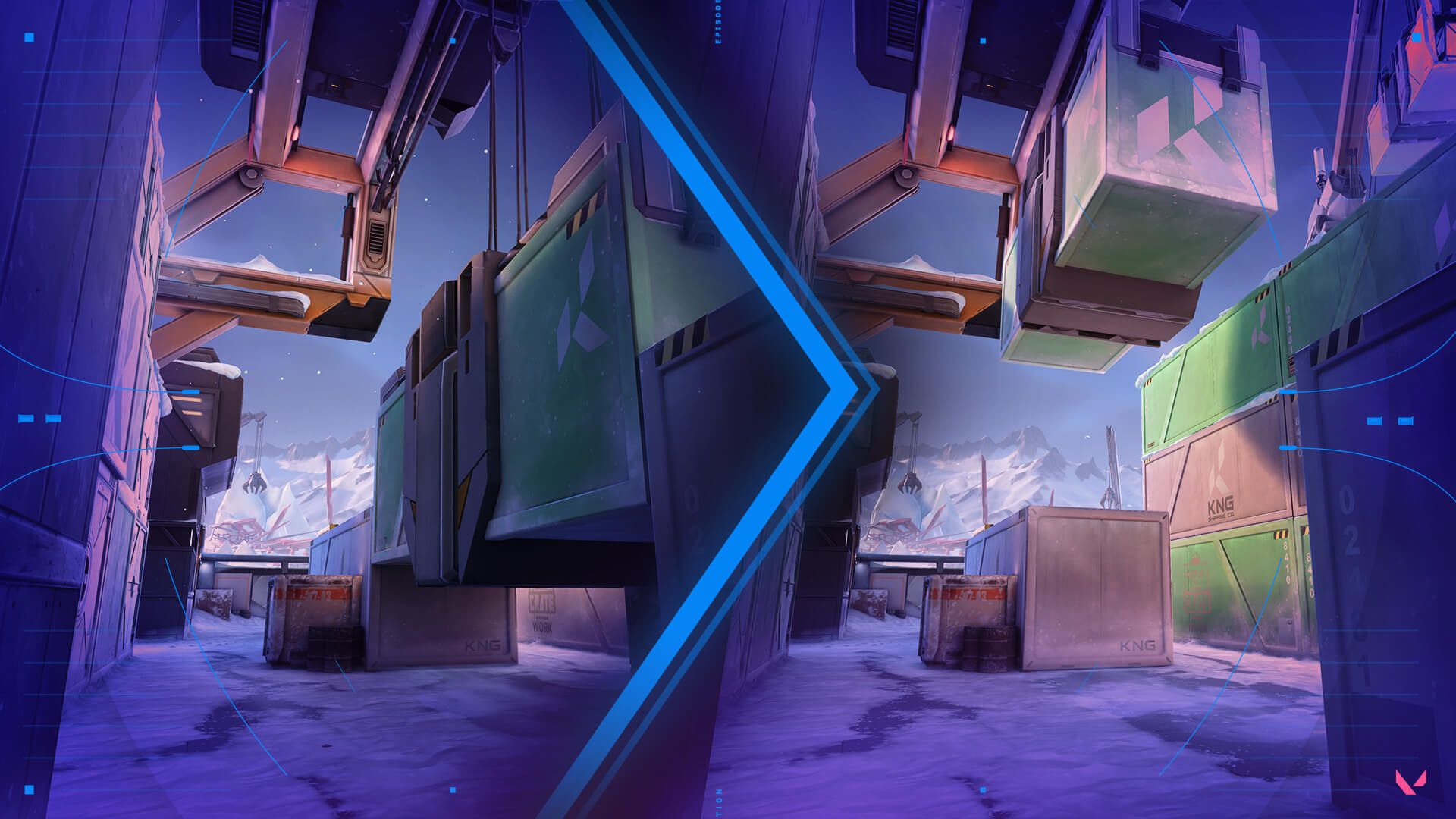
- The hanging container in B Green was creating a lot of complexity for both fights on the ground and people boosting up top. Moving the container out of the way should make combat here more manageable.
- We felt that Mid could use more value for either team holding it. We've added a window toward the end of B Tube that overlooks Mid and can see towards A Site and Defender Spawn. It allows Attackers to assert a lot of pressure on rotators and Defenders should be able to hold more space when holding Mid from B Kitchen or Mid Boiler.
- Added two boxes stacked flush to the wall
- There were multiple parallel paths leading from Mid to B Site. To reduce timings and create more predictable fights we've removed the B Orange route closest to B Kitchen.
- Adjusted the snowpile leading up to B Kitchen so you can now silently drop off the boxes.
- More room has been added to A Main along with a set of boxes to give Defenders some more options to fight for A Rubble control.
- The double stack of boxes outside A Stairs has been changed to non-penetrable to reduce the likelihood of being spammed.
- More room has been added near the breakable door. It was always a little awkward to fight out of the broken door, but now it should be easier to fight out from inside the connector room.
- A Hut has been closed to help give some more readability to the plant site, making it easier to retake. A cubby has also been added to the back of A Hut for more defender options to hold the site.
- More room and boxes have been added to B Site to add some defensibility closer to the choke on site.
- The Spike plant zone and the stairs in C Bend have been adjusted to allow for more diversity of Spike plant locations in C Site.
- Boxes on the back of site have been adjusted.
- More room and boxes have been added in C Main to also add some defensibility closer to the front of Main.
- Boxes have been added to C Bend along with some extra room to fight from.
- Rotating doors now take 10 seconds to fully complete their spin, up from 8 previously. 8 seconds was not enough time to use utility through the doors or fight, and make it through the doors on the same rotation. The extra time should allow for more fights to happen through the doors, and most everyone to get through the door on time.
- B Orb has been removed in order to bring it more in line with our other maps (with Fracture being the exception with 4).
- B Orb was very farmable by Attackers so it’s another way we are trying to address the Attacker sidedness of the map.
MODES UPDATES
We felt that the Sheriff is overperforming in the Stage 2 weapon ecosystem and, as a result, other loadouts have been pushed to the side. This change aims to allow other weapons to be more viable when in an engagement against a Sheriff.
PREMIER UPDATES
- Team Captain Role
- Standings
- Divisions
- Playoff Qualification
- EMEA Zone Updates
GAMEPLAY SYSTEMS UPDATES
Starting in Patch 8.0, VALORANT will support third party spatialization software for headphones.
Spatial Audio is virtual surround sound for headphones . This software processes sound to help you differentiate sounds that are in front, behind, or even above you, while listening on headphones. For example, figuring out if those footsteps were in front of you or behind you. We are excited to announce that Patch 8.0 will include official support for 3rd party spatial audio solutions! This gives you choices beyond the HRTF option which was already available in VALORANT’s audio settings. In Patch 7.06, we made changes to the audio engine that caused issues for those of you who were already using third party spatialization software, which we did not support at the time. When 3rd party spatialization software was active in Windows settings in 7.06, sound levels went haywire and our only solution at the time was to guide those being affected to turn third party spatialization software off for the time being. We implemented a stereo-only fix in 7.07 that was compatible with Spatial Audio, but did not allow it to virtualize surround sound. In Patch 8.0, the Speaker Configuration in VALORANT’s audio settings will default to stereo, but you can enjoy all of the features that these spatial audio solutions provide if you choose to opt in by setting the Speaker Configuration to Auto-Detect.
- Step 1: Open VALORANT’s audio settings and change the Speaker Configuration from Stereo to Auto-Detect.
- Step 2: Turn on Spatial Audio in your Windows settings. Open the Sound control panel, right click your playback device, choose Properties, and go to the Spatial sound tab. This is where you can turn spatialization software on and select different spatial sound formats.
- Step 1: In Windows, to turn off 3rd party audio spatialization, also known as Spatial sound, open the Sound control panel, right click your playback device, choose Properties, and go to the Spatial sound tab. This is where you can turn spatialization software off.
- Step 2: Open VALORANT’s audio settings and change the Speaker Configuration from Auto-Detect to Stereo.
- The VALORANT Speaker Configuration defaults to Stereo, which is not compatible with Spatial Audio in Patch 8.0. Changing the VALORANT Speaker Configuration to Auto-Detect will take full advantage of Spatial Audio.
- USB-based virtual 7.1 channel headphones are now supported. Please ensure you install all of your headphone manufacturer’s audio software and drivers required for this to work correctly.
- If you discover this while you are in a game, there are two quick fixes. You can set the VALORANT Speaker Configuration to Stereo until you can install your headphone drivers OR you can also enable spatial audio in your Windows audio settings (Windows Sonic comes with Windows). But don’t do both of these two things. You have to pick one . The issue in this case is that some USB headphones appear to Windows as 5.1 or 7.1 devices, but the headphones depend on drivers to mix those 6 or 8 channels down to stereo. If those drivers aren’t installed, sounds can’t be played back from the center or surrounds, and will be silent. Those sounds will be missing. Installing the headphone manufacturer’s audio software and drivers fixed the problem in our testing.
- Our existing HRTF option isn’t going away. If HRTF was already active in your VALORANT settings, your settings will not be changed when you log into Patch 8.0.
- If you change your VALORANT Speaker Configuration to Auto-Detect and activate Spatial Audio on your computer, VALORANT will enable Spatial Audio and turn off HRTF for you.
- When we ran into this issue in our testing, we found that turning off “Hands Free Telephony” for the bluetooth headphones solved this issue. Please note, turning off this feature will disable the built-in microphone for your headphones. This setting is under Devices & Printers, (Your Headphones), Properties, Services.
- HRTF and spatial audio are only designed for headphones, so if you are listening on speakers, HRTF and spatial audio should be off.
- Yes. Note that a mono mix doesn’t take advantage of HRTF or spatialization since these techniques work in part by using time and spectral differences between left and right channels. Having spatial audio enabled in your system settings won’t do any harm if you have the mono option checked because spatial audio will be bypassed. When turning the mono option on or off, you may need to restart the game for the changes to take effect.
- While rare, HRTF and spatial audio processing can have that effect on some people. If you find that your selected spatial audio solution is causing these symptoms, please turn it off or try using a different spatial audio solution.
- In part, Spatial Audio applies HRTF (Head Related Transfer Function) processing. Any software that applies HRTF is based on an anatomical model. For example, the distance between ears, distance from shoulder to ear, shape of ear cartilage, and many other measurements. Those measurements are used to model time and spectral differences of sounds around our head and mimic the cues that our brains use for determining the 3D positioning of sounds around us. A sound coming from your right side reaches your right ear first and reaches your left ear slightly later due to the speed of sound. Our brains interpret these details to tell us where a sound is coming from. Each individual person is accustomed to what that sounds like based on their anatomy. An HRTF model that matches your anatomy is going to sound most natural to you. If you are using an HRTF profile that doesn’t match your anatomy, it may be hard to tell whether a sound is in front of you or behind you. We are happy to expand the number of spatialization software choices you can try in Patch 8.0. We don’t think any particular HRTF solution gives a competitive advantage beyond your personal preference.
- Listening to — Compatible with HRTF — Compatible with Spatial Audio
- Headphones — Yes — Yes
- Speakers — No — No
- Mono — No — No
BUG FIXES
- General
KNOWN ISSUES
- Team Deathmatch